
Godzilla Melee Remastered Controls and Input Guide
How the control scheme works on PS5, Xbox, Switch 2, and PC, the inputs that matter in a fight, and the settings worth changing before your first online match.
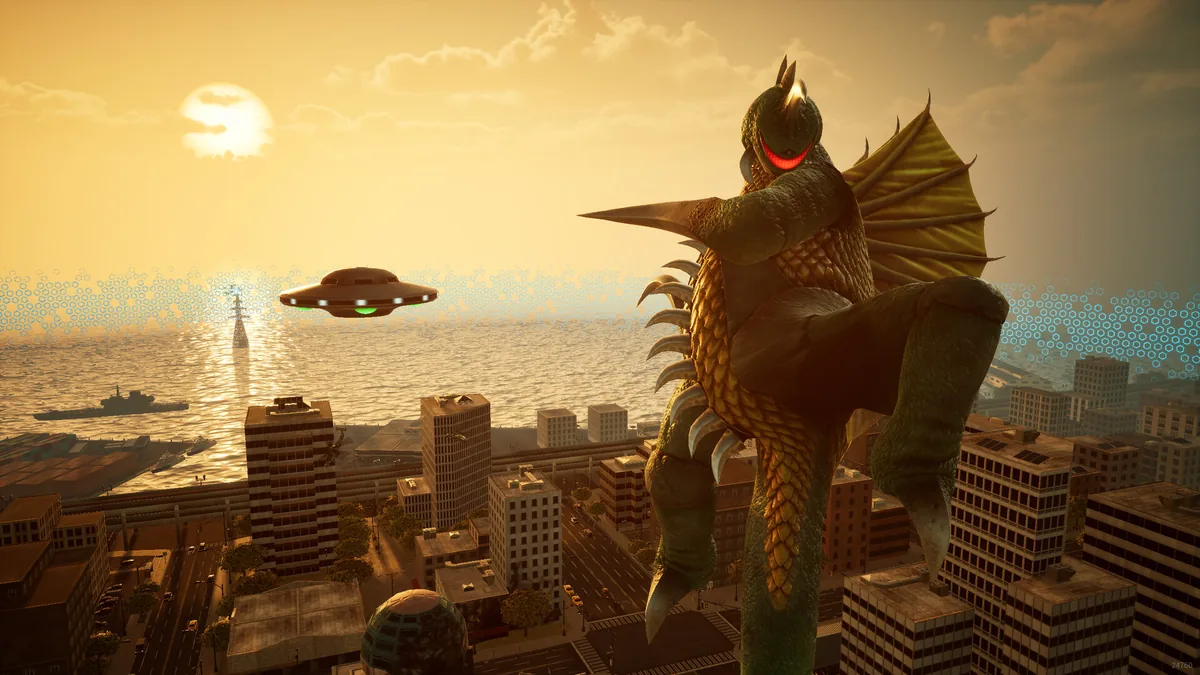
The remaster uses a traditional 3D arena-fighter layout: one stick moves, one stick controls the camera, face buttons handle attacks and defense, and a shoulder button handles the grab or block. The exact labels differ by platform, and the PC version supports full controller input, but the underlying actions are the same.
This page explains the actions rather than pretending there is one universal button map. The game's pause menu has the authoritative bindings for your platform and your chosen layout. If a tutorial video uses different labels, check the in-game move list before you assume your copy is broken.
The action set
Every version gives you the same core actions:
| Action | What it does | When to use it |
|---|---|---|
| Move | Walks or runs your monster | Repositioning, closing distance, escaping the corner |
| Camera | Rotates the view around your monster | Keeping the opponent on screen |
| Light attack | Fast melee string | Pressure, whiff punishment, starting combos |
| Heavy attack | Slower, higher-damage strike | Punishing a blocked or whiffed move |
| Ranged attack | Projectile or beam | Zoning, covering an approach |
| Block | Reduces damage and stops some attacks | Defending against strings |
| Sidestep | Quick lateral movement | Dodging beams and forward attacks |
| Grab/throw | Bypasses blocking | Punishing a turtling opponent |
| Jump | Leaves the ground | Aerial attacks, avoiding low attacks |
| Rage | Activates the Rage Mode state | Turning a round, extending pressure |
Some characters have extra tools: Kiryu's freeze, Gigan's buzzsaw, Megalon's drill, Rodan's flight. Those are listed in the character-specific guides rather than here, because the input can vary by move.
The single biggest improvement a new player can make is learning to block and sidestep. A player with two combos and no defense loses to a player with one combo and good defense. Start with the defensive actions.
PS5 controls
On PS5, the DualSense handles movement and camera with the two sticks. The face buttons cover light and heavy attacks, with the shoulder buttons handling block, grab, and Rage. The exact assignment depends on the preset you choose in the options menu.
The DualSense's adaptive triggers are not essential to the combat. If you prefer a traditional fighting-game feel, check the settings for trigger sensitivity and vibration. The game does not require motion controls.
The touchpad is not a combat button. Do not expect it to activate Rage or switch targets. If you are coming from a fighting game with a touchpad shortcut, you will need to use the standard face-button layout.
Xbox controls
On Xbox Series X|S, the layout follows the same logic: left stick moves, right stick cameras, face buttons attack, shoulders block and grab. The Xbox controller's impulse triggers work with the game's rumble, but they do not change the inputs.
If you use an Xbox Elite controller, the back paddles can be mapped through the Xbox Accessories app. The game itself does not add extra bindings for the paddles; they mirror the standard buttons. That is useful for keeping your thumb on the camera stick, but it is optional.
Switch 2 controls
On Switch 2, the Joy-Con 2 controllers and the Pro Controller both work. Handheld mode uses the attached Joy-Con, which have a shorter stick travel than a Pro Controller. For competitive online play, the Pro Controller is the more comfortable option.
The Switch 2 version supports local wireless and split-screen play. If you are setting up four-player local play, each player needs a controller or a Joy-Con pair. The game does not require motion controls, and the touchscreen is not used for combat.
The smaller screen makes it harder to track the opponent's off-screen movement. Use the camera reset and the lock-on if available, and avoid playing handheld if you are trying to learn precise spacing.
PC controls
The Steam version supports full controller support, and the store page lists it as a feature. An Xbox controller is the simplest choice on Windows because it maps cleanly to the standard layout. A DualSense can work through Steam Input, but the button prompts may show Xbox labels unless the game detects the controller natively.
Keyboard and mouse are supported, but the game is designed around a controller. The camera control and the analog movement are smoother with two sticks. If you insist on keyboard, check the settings for the attack bindings and set the camera sensitivity low enough that you can track a moving opponent.
The PC version also supports Steam Remote Play Together. That lets a friend join a local session over the internet, but the guest's inputs are streamed. For precise play, a native controller on the host machine is better.
Settings worth changing
Camera sensitivity. The default camera speed can feel slow when a fast character circles you. Raise it slightly, then test it in the campaign. Too high and you will overshoot the opponent.
Vibration. Rumble can help you feel when a hit connects, but it can also mask the visual cue of a block. If you are learning the timing, turn it down.
Audio. The game's sound effects are useful cues. A beam charge, a grab startup, and a Rage activation all have distinct sounds. Do not play with the volume so low that you cannot hear them.
Difficulty. The campaign difficulty affects the CPU's aggression. If you are learning the controls, start lower and raise it once you can block consistently.
Button layout. If your platform offers presets, choose the one that keeps block and grab on separate buttons. Combining them can cause accidental grabs when you meant to block.
Input notation for the character guides
The character guides on this site use plain language rather than numeric notation. When a guide says "light-light-heavy," it means a sequence of two light attacks followed by a heavy attack. When it says "beam," it means the character's ranged special. This avoids platform-specific button labels and keeps the advice readable.
If you want to translate a guide into your own bindings, write down the four actions you use most: light, heavy, block, and ranged. Then map the guide's terms to those buttons. You do not need to memorize a 20-input combo to play well.
Practice routine
A short practice session before online play:
- Walk forward and backward, then sidestep left and right.
- Block a full light string from the CPU.
- Punish the CPU's whiffed heavy with your own heavy.
- Land one ranged attack at max range.
- Activate Rage and land one hit during the enhanced state.
- Grab the CPU once after it blocks.
Repeat until the actions feel automatic. The goal is not to memorize the move list; it is to make the defensive options available without thinking. The beginner guide explains why defense comes first.
Common control problems
The camera keeps losing the opponent. Raise the camera sensitivity slightly and use the reset button. In local split-screen, the camera is tighter by design.
I cannot block in time. Blocking has a startup window. If you press it after the opponent's attack has already connected, you will eat the hit. Block earlier, especially against slow heavy attacks.
My grab keeps whiffing. Grab range is shorter than it looks. Use it after a blocked light attack or when the opponent is cornered.
Rage does not activate. Check that the meter is full and that you are not in a hit-stun animation. Some modes may restrict Rage; check the mode rules.
The PC version shows Xbox prompts with a PlayStation controller. This is a Steam Input labeling issue, not a gameplay problem. The buttons still work; only the icons differ.
Official source: Steam store page for Godzilla: Destroy All Monsters Melee Remastered
For the next read, compare the tier list and the unlock route.
Sources and verification
- Steam lists full controller support, Remote Play Together, and the local split-screen features.
- The official Godzilla roster article describes the melee, ranged, and Rage tools.
- Gematsu confirms the platforms and the local/online multiplayer structure.
- TOHO Kingdom's original specifics provides historical context for the 2002 control scheme.
Button labels can change with a patch or a platform preset. The in-game move list is always the final authority.
More Godzilla: Destroy All Monsters Melee Remastered Guides
How to play Destoroyah in the remaster: closing space, turning one opening into huge damage, and managing the commitment that makes him high-risk.
How to play Gigan in the remaster: buzzsaw pressure, chest laser zoning, movement mix-ups, and the defense you need to survive his small health pool.
How to play Godzilla 2000 in the remaster: the faster Godzilla's pressure game, spiral breath punishes, Rage timing, and the matchups where speed fails.
How to play Godzilla in the remaster: the neutral game, atomic breath timing, Rage Mode usage, and the matchups that punish careless beam spam.
How to play King Ghidorah in the remaster: using three heads and gravity beams to control space, when to stomp, and how to survive when a brawler gets inside.
How to play Kiryu in the remaster: the freeze tool, maser zoning, heavyweight normals, and the setup routes that make him the highest-ceiling monster.
How to play Mecha-King Ghidorah in the remaster: using cable traps and gravity beams to control space, and why the setup character is harder than King Ghidorah.
How to play the Showa Mechagodzilla in the remaster: armor trades, missile pressure, beam zoning, and the close-range weakness that keeps him honest.